Steps to import
- Enter the course you would like to import videos into.
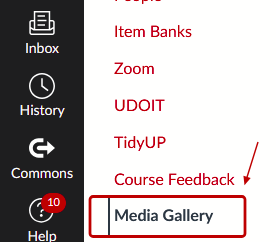
Click the Media Gallery tab at the left.
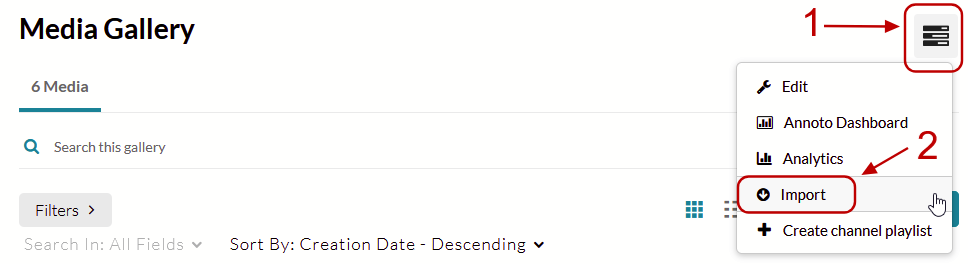
Click the icon with three bars at the top right, then click Import.
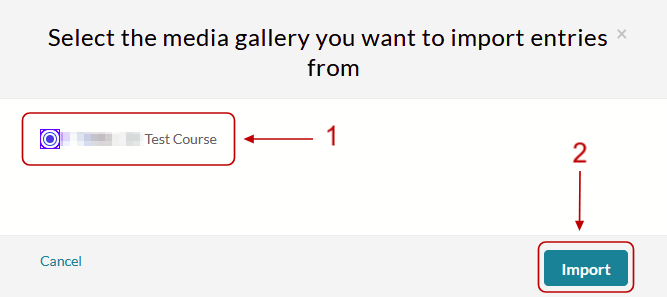
Click the course with the Media Gallery that you want to import videos from, then click Import.
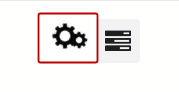
While the import is performed, there will be a spinning gear icon in the top right.
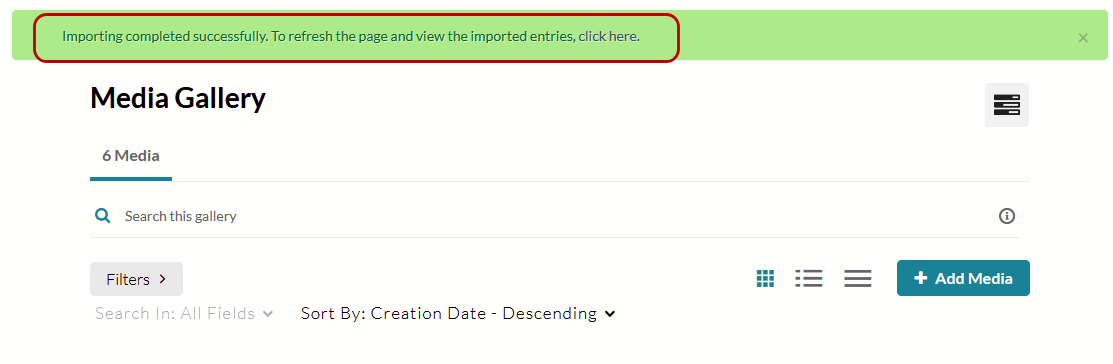
Once the import has finished, there will be a green banner confirming the import was successful.
Importing Playlists
If a Media Gallery you are importing from has more than 10 playlists, then no playlists will be imported. You will see this message for a moment after clicking Import if this is the case:
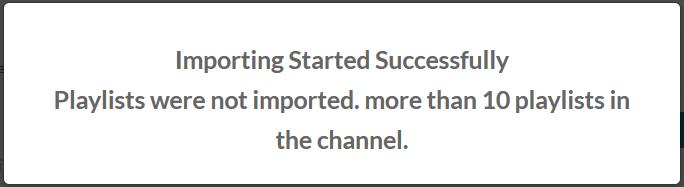
When this occurs, the videos will still be individually imported, but the organization of the videos into playlists will not be present in the new Media Gallery.
To have playlists imported from a Media Gallery with more than 10 playlists, contact Digital Learning Technologies at [email protected], and we can assist with this transfer.