Gather the required materials
Prepare the materials that apply to your proposal before you begin. You can add supporting documents at any time before final submission.
Record a 2-5 minute summary video
Include a link to a 2-5 minute video with your proposal. You can host the video in Mediaspace. The video doesn’t need professional production, music, or animation.
The video gives your college or unit an opportunity to provide context that may not be clear from the written proposal.
Use the video to explain:
- How student computing funds will help students in your college or unit
- How faculty input informed the request
- Any additional context the committee should consider
Reconcile previous awards
If applicable, compile spending information for awards received during the previous two years. Include it with your proposal to show how you used the funds.
Collect lab usage statistics
If you’re requesting funds to replace lab computers, you must submit all four required Fall 2026 LabStats reports.
Required reports:
- Usage History
- Login Summary by Group
- Unique Users
- Peak Usage History
Complete the VDI system report
If you’re requesting Virtual Desktop Infrastructure (VDI) funding, you must email [email protected] with the subject line “Learning Spaces Help.” Digital Learning Technologies will send you the required VDI form. Complete the form and attach it to your proposal.
Request an AV estimate by November 25, 2026
For an audiovisual installation project, submit an AV Equipment Installation request by November 25, 2026.
For requirements and instructions, see A/V equipment installation requests for campus learning spaces.
Provide a 1003 fund chartfield
Provide a 1003 fund chartfield with your application. The committee cannot transfer an award until it receives this information.
Identify a leadership approver
Provide a leadership contact who can approve the proposal on behalf of your organization. For a college, list a dean or associate dean; for a center, list the director. This approval confirms that the proposal reflects the needs of the entire college or center.
Create a proposal
Open Learning Spaces
Go to the Learning Spaces Portal and select University of Utah SSO to sign in.

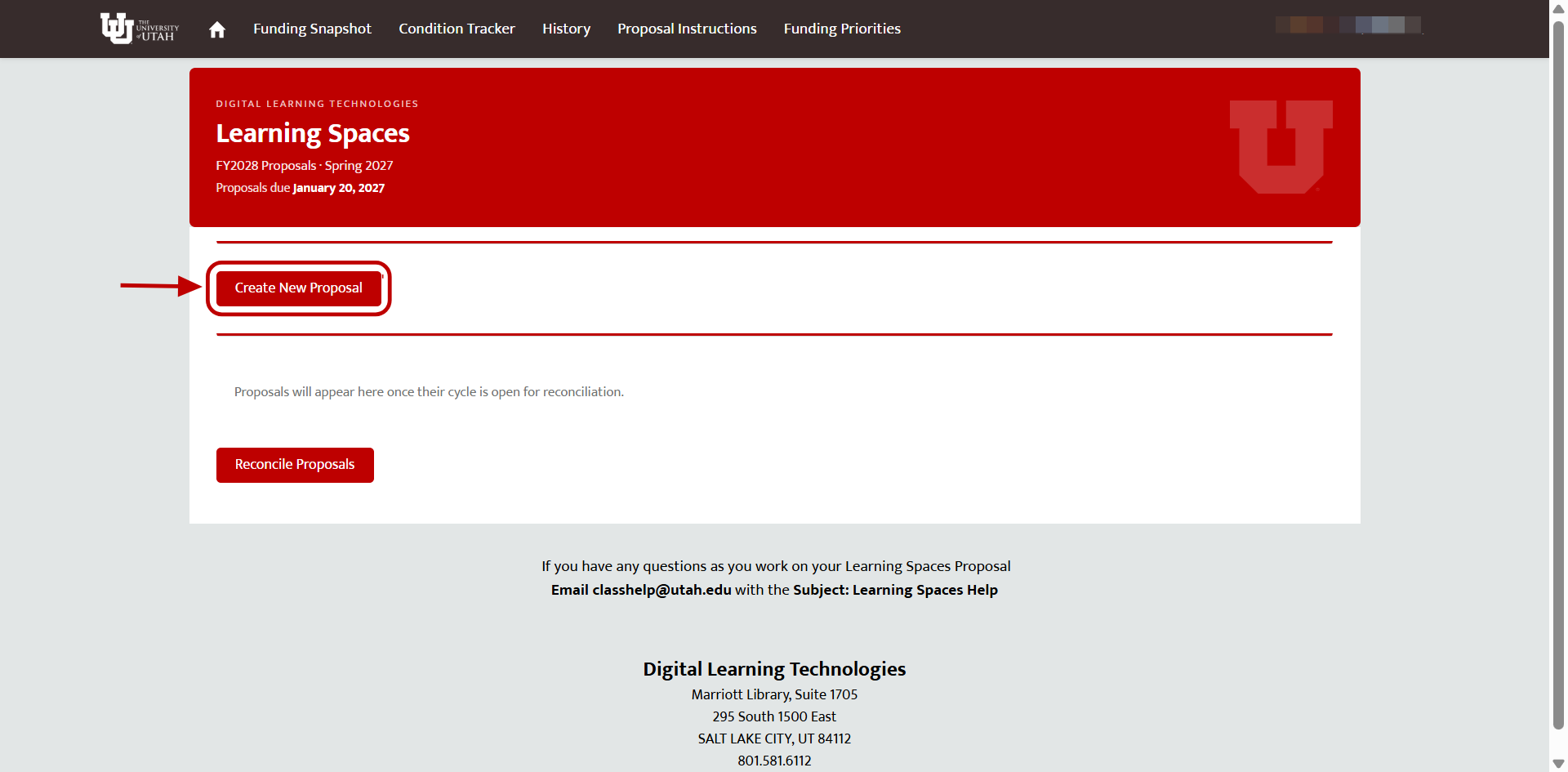
Start a proposal
On the Learning Spaces Homepage, select Create New Proposal.
Enter the proposal details
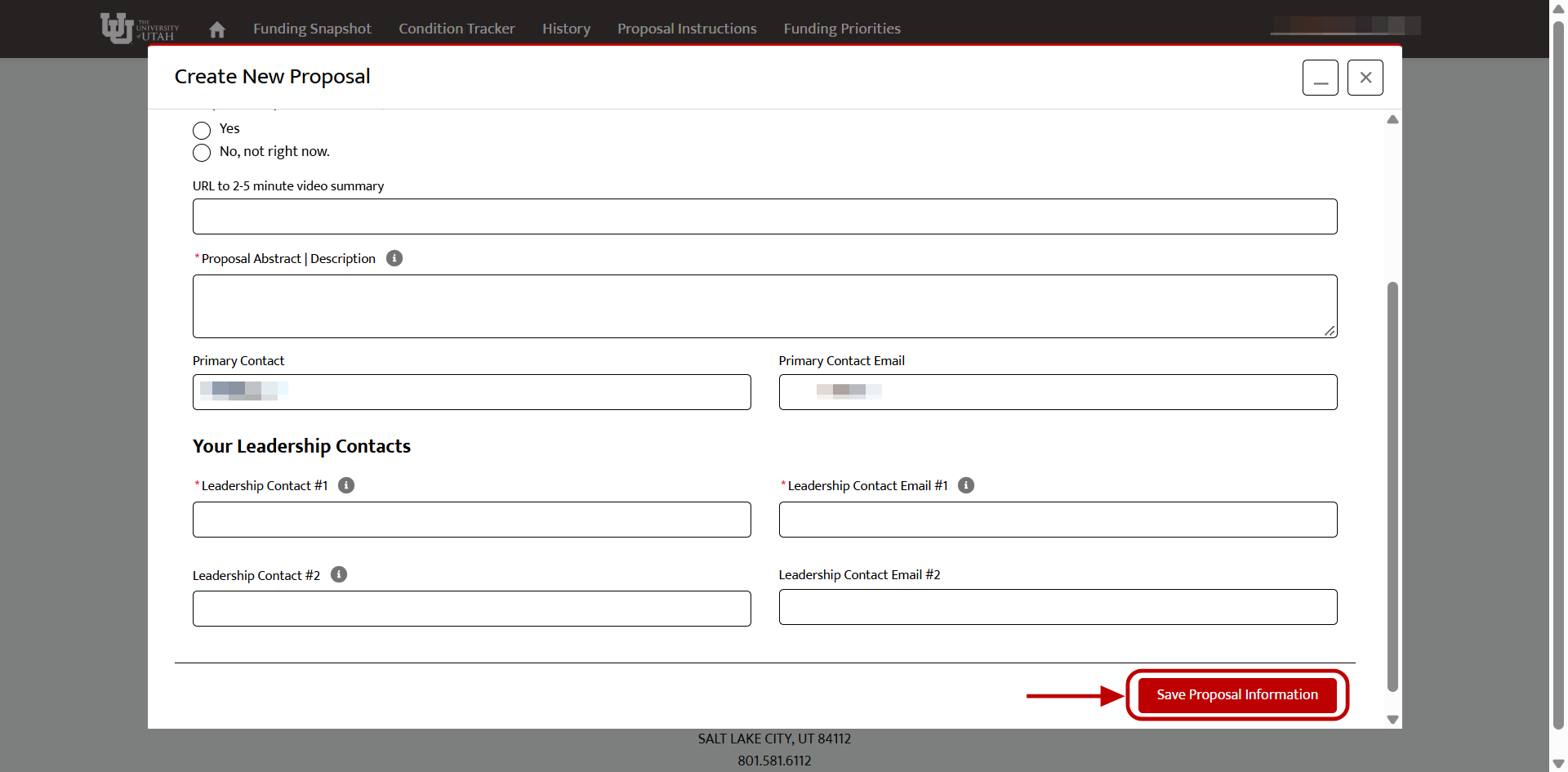
Enter the chartfield number, link to the summary video, and proposal abstract or description. You’re listed as the primary contact by default, but you can add lead contacts.
Select Save Proposal Information. You can edit the proposal before final submission.
Add supporting documents
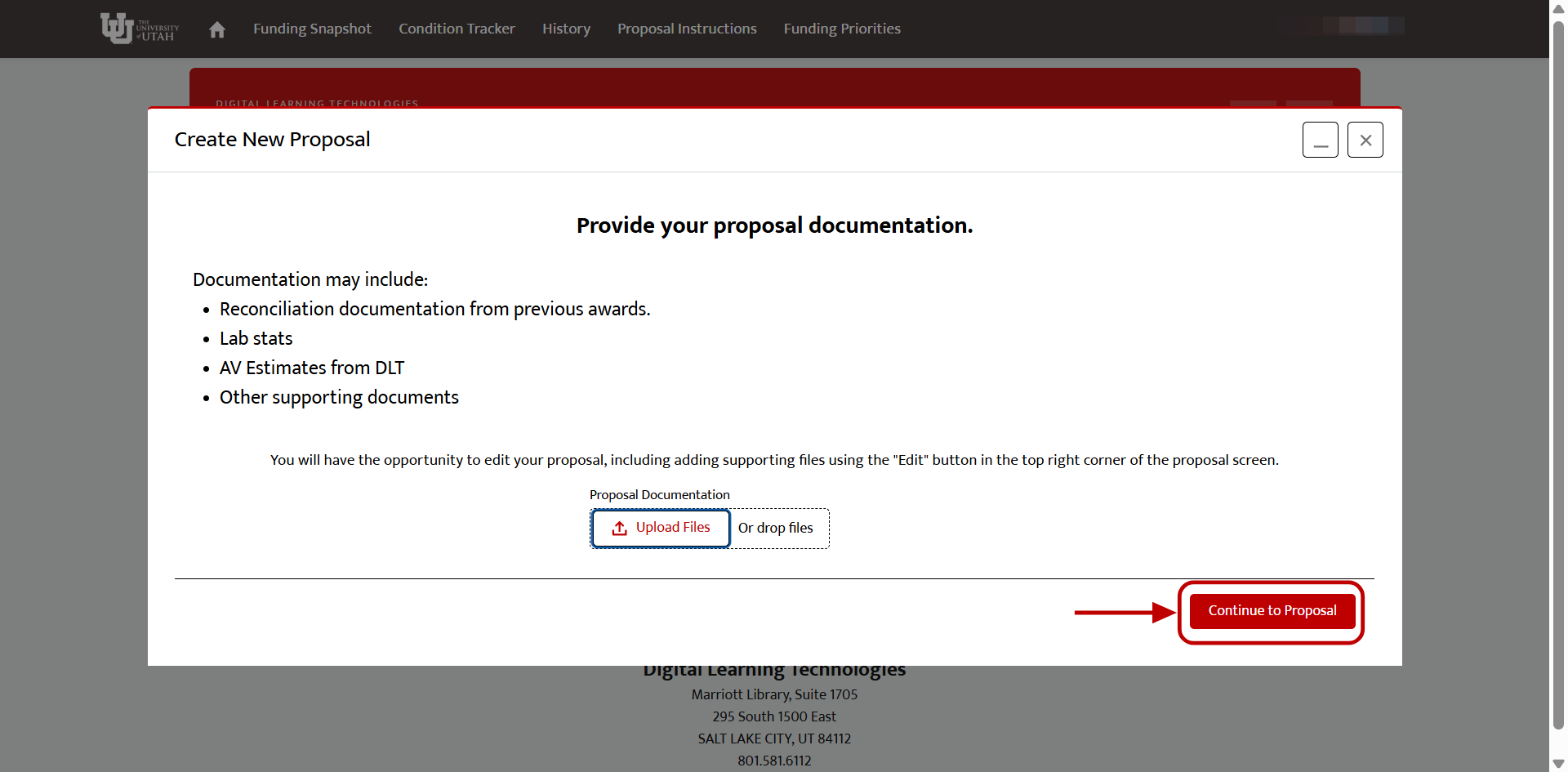
To add LabStats reports or other supporting documents, select Upload Files. If the documents aren’t ready, you can add them later.
Select Continue to Proposal when you’re ready to continue.
Resume or manage a proposal
To continue working later, sign in to the Learning Spaces Portal and select the proposal. On the Proposal Homepage, select Edit to update proposal information, Create New Request to add a request, or Submit Proposal to submit the completed proposal.
Create a request
Start a request
On the Proposal Homepage, select Create New Request.
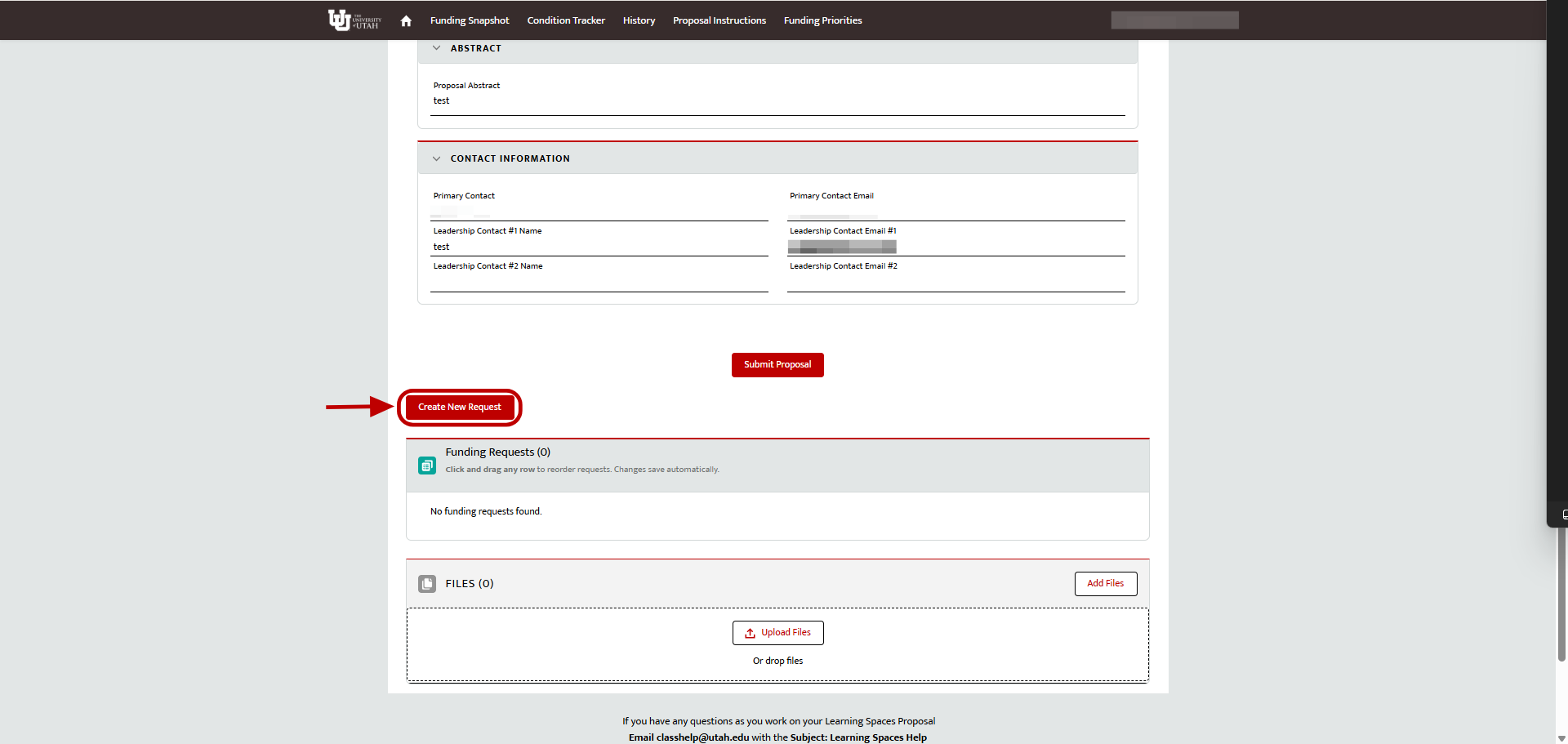
A text window with information will pop-up, click Next when you’re ready to proceed.
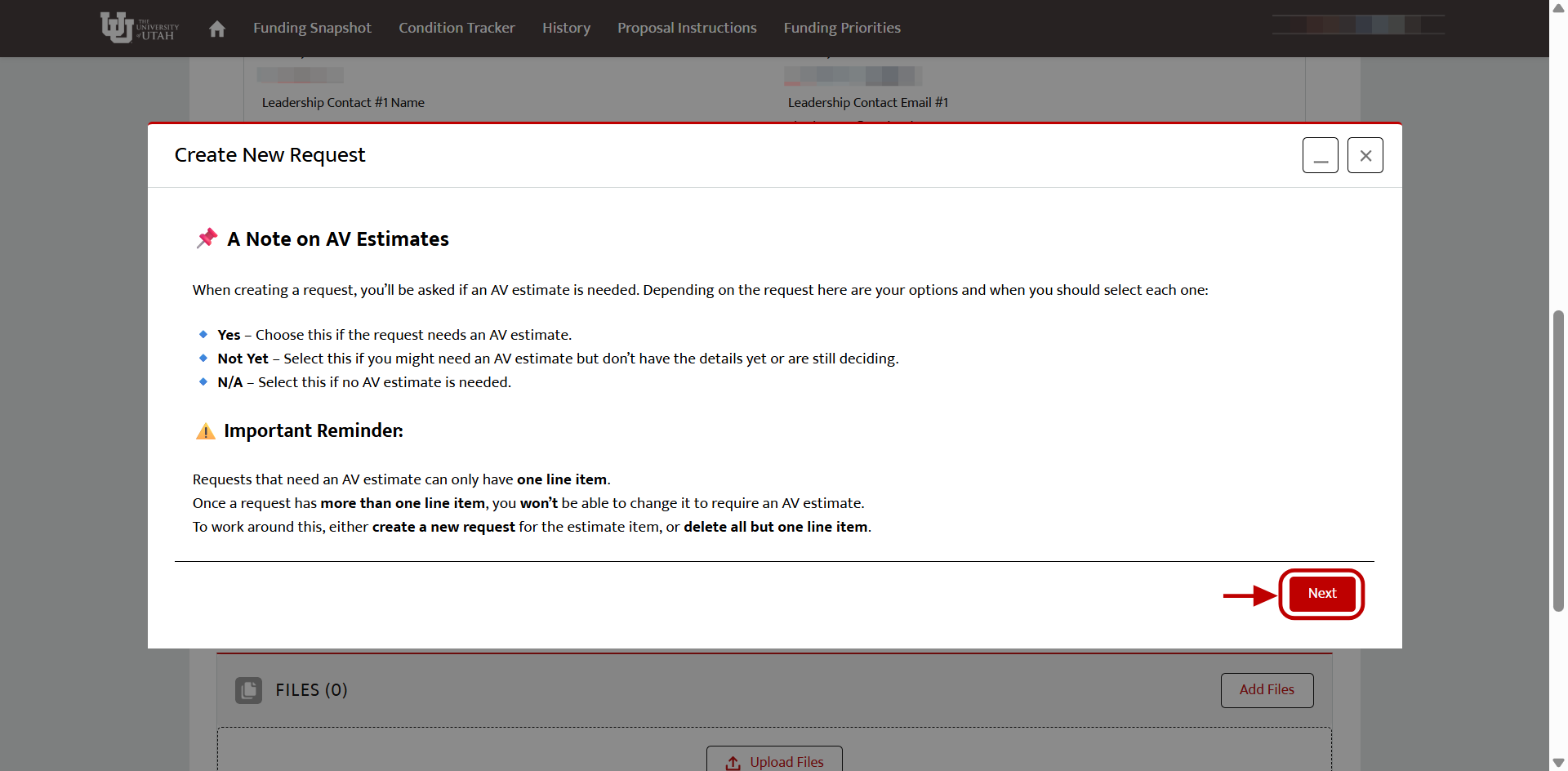
Enter the request details
Enter a request name, priority, description, number of students benefited, and whether you need Digital Learning Technologies to prepare an audiovisual estimate.
Select Next to create the request.
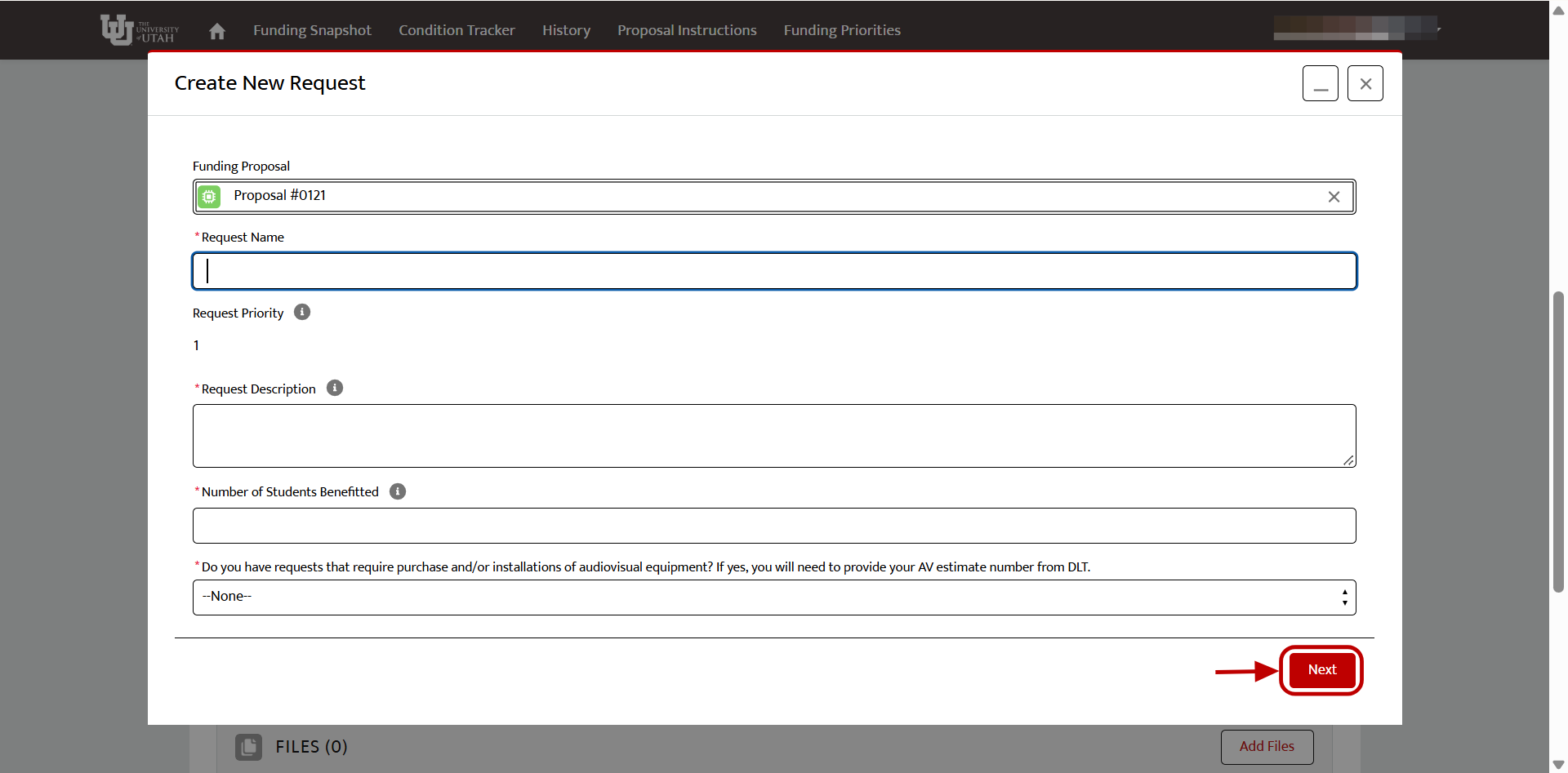
Choose where to go next
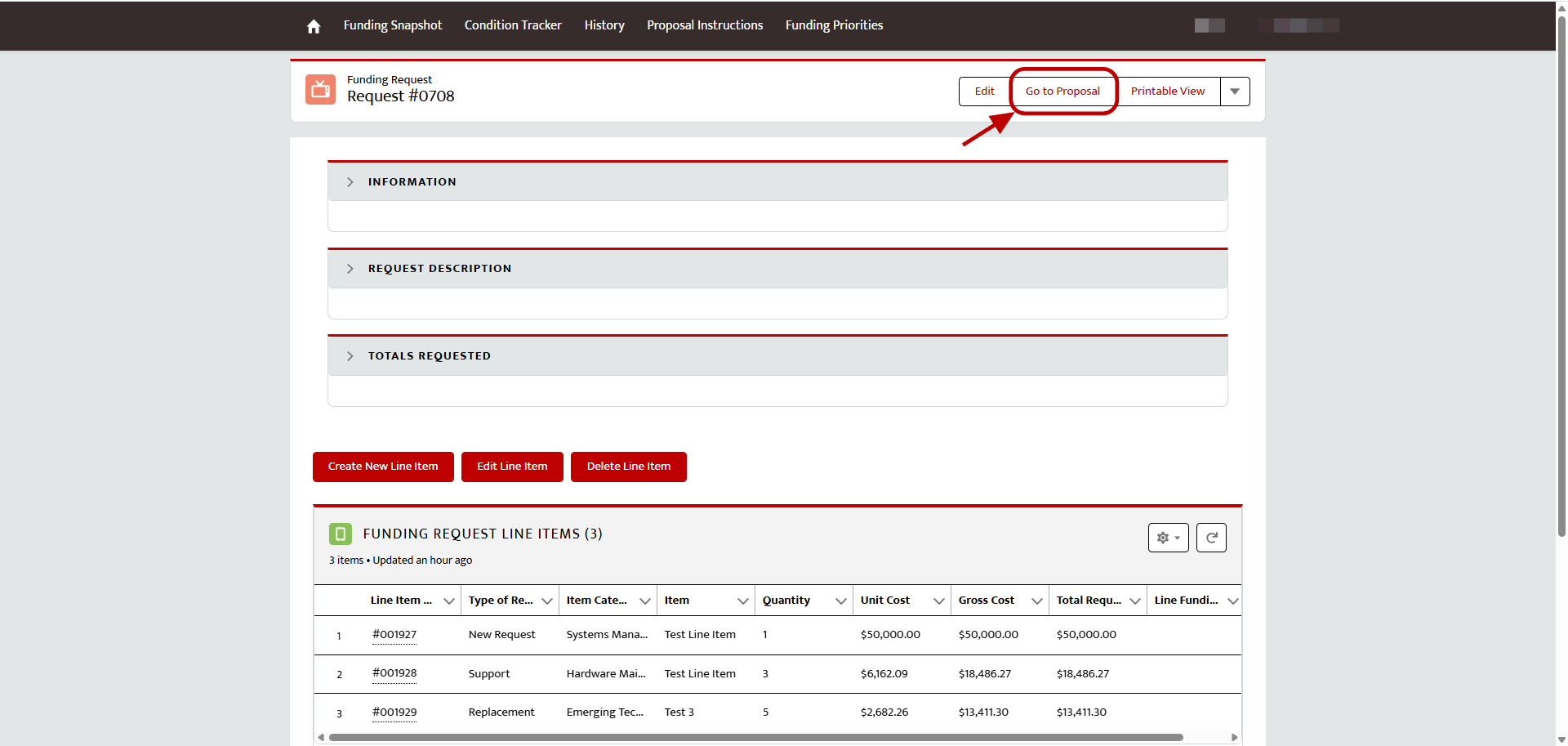
Select Go to New Request to add line items. Select Go to Proposal to return to the Proposal Homepage.
Manage the request
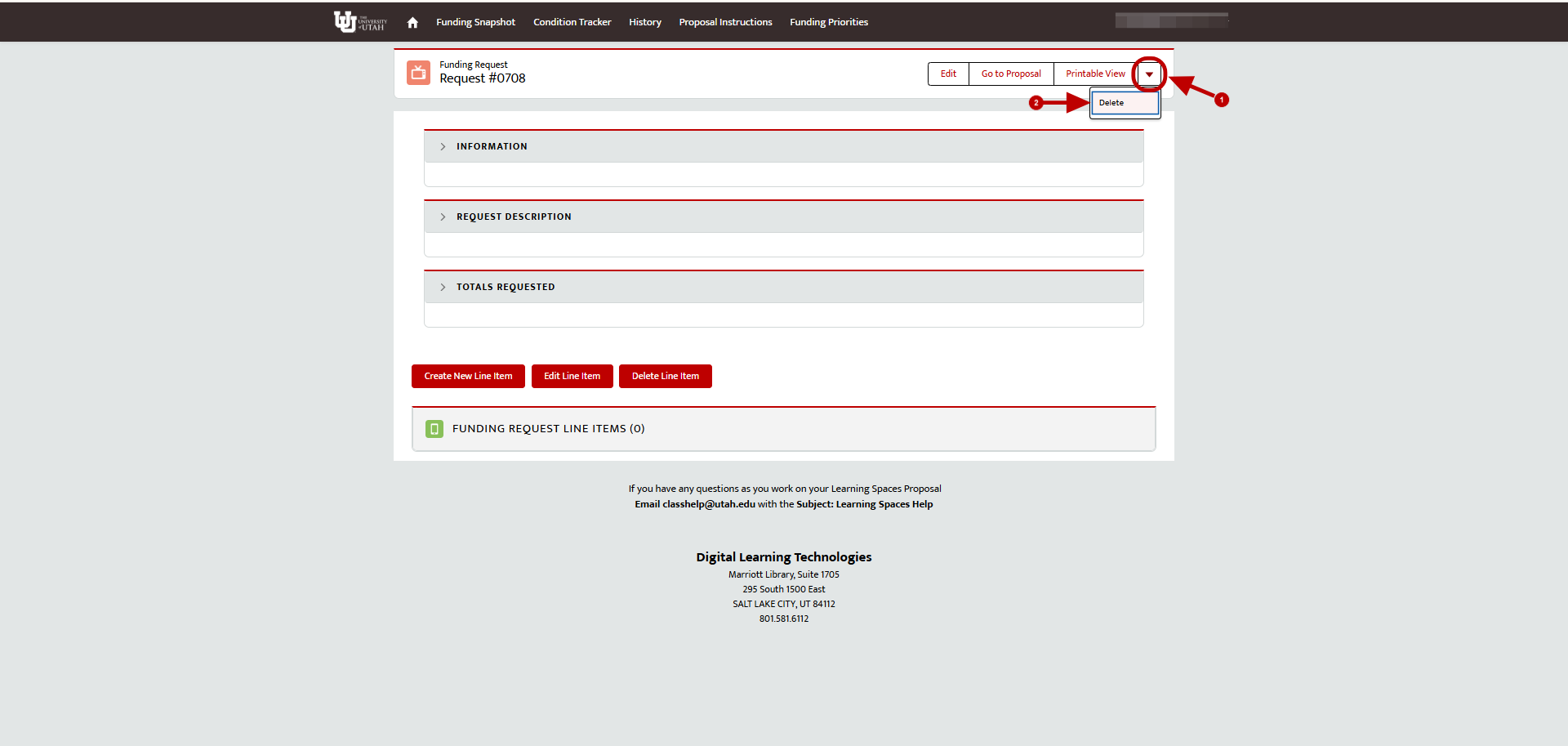
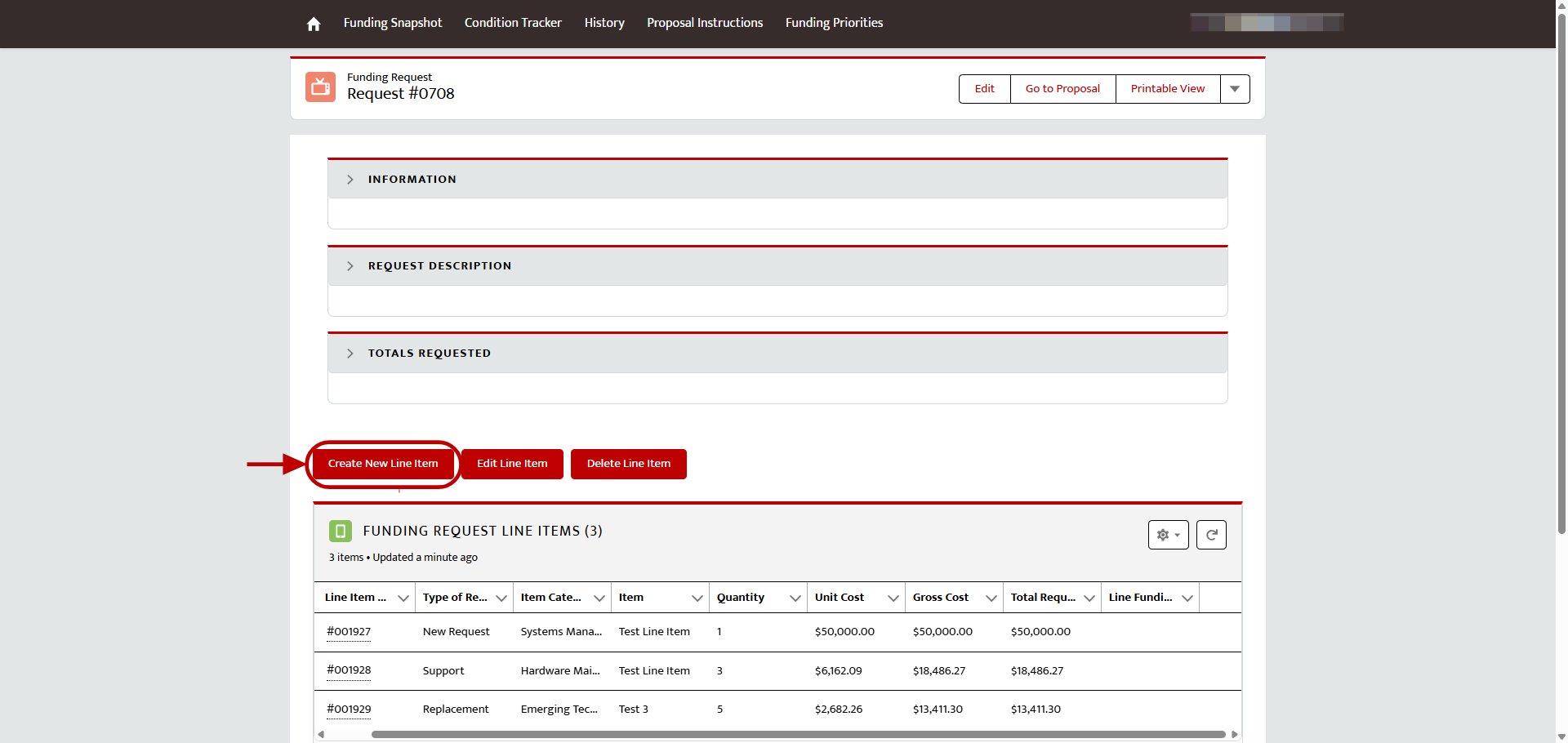
On the Request Homepage, select Edit to update the request. Use Create New Line Item, Edit Line Item, or Delete Line Item to manage line items. To delete the entire request, open the menu next to Printable View and select Delete.
Add a line item
Enter the line item details
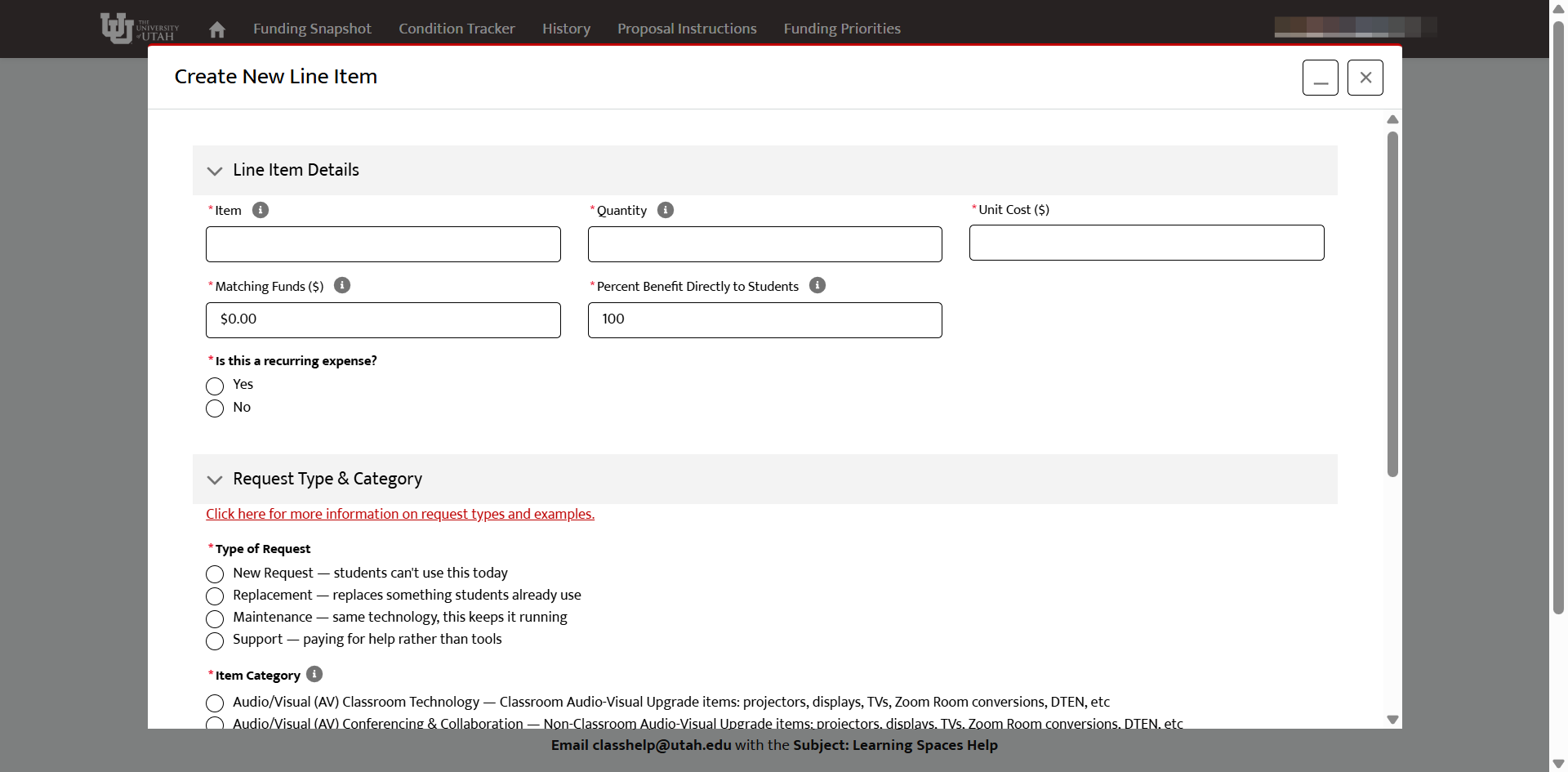
On the Request Homepage, select Create New Line Item. Enter the item, quantity, unit cost, any matching funds your department will be providing, student benefit percentage, and request type.
The student benefit percentage reflects the amount of time the item is used by students and determines the eligible request amount. For example, a $500 item with a 50% student benefit records a $250 request.
Categorize the line item
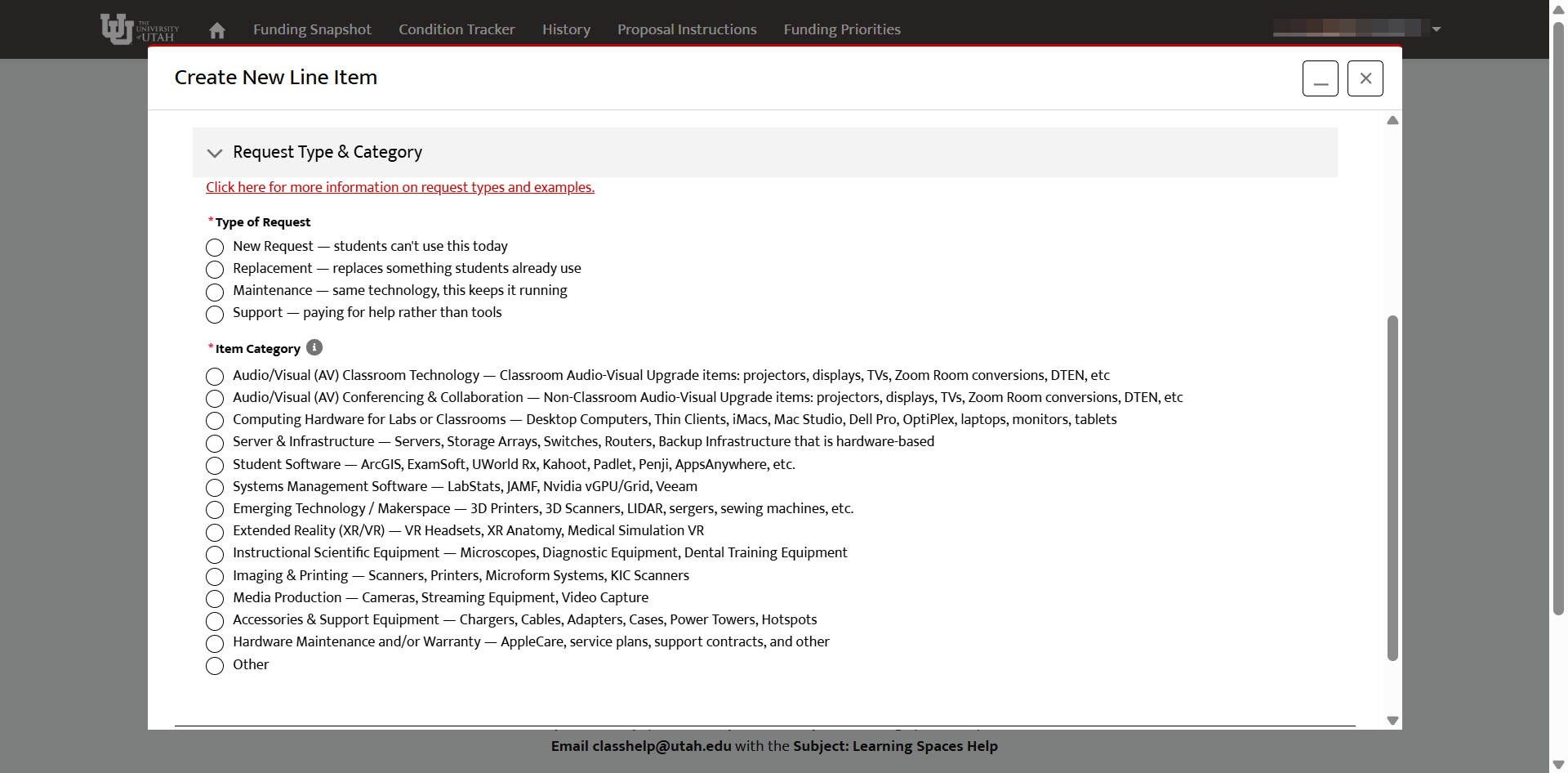
Choose one request type:
- New Request: an item or service students cannot currently use
- Replacement: an item that replaces technology students already use
- Maintenance: work that maintains existing technology or keeps it operating
- Support: assistance or services rather than a technology purchase
Separate items with different categories
Create separate line items when items have different request types or categories. For example, enter a computer as Computing Hardware and its warranty as Hardware Maintenance and/or Warranty. Select Next (at bottom of screen) and review the calculated totals.
Review and confirm the line item
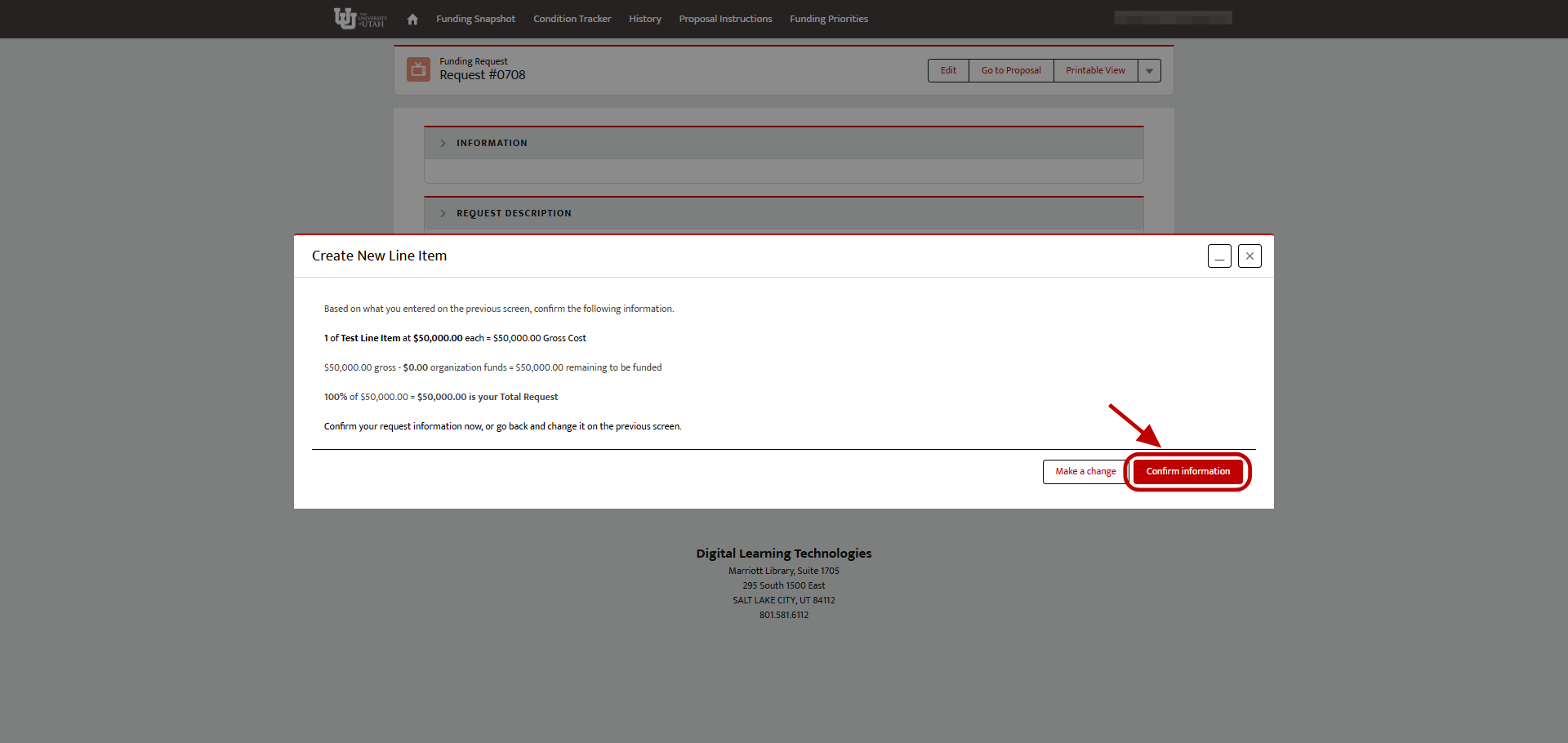
Select Make a change to edit the item or Confirm information to create it.
Review the request totals
The Totals Requested section on the Request Homepage updates automatically as you add line items. To add another item, select Create New Line Item and repeat the preceding steps.
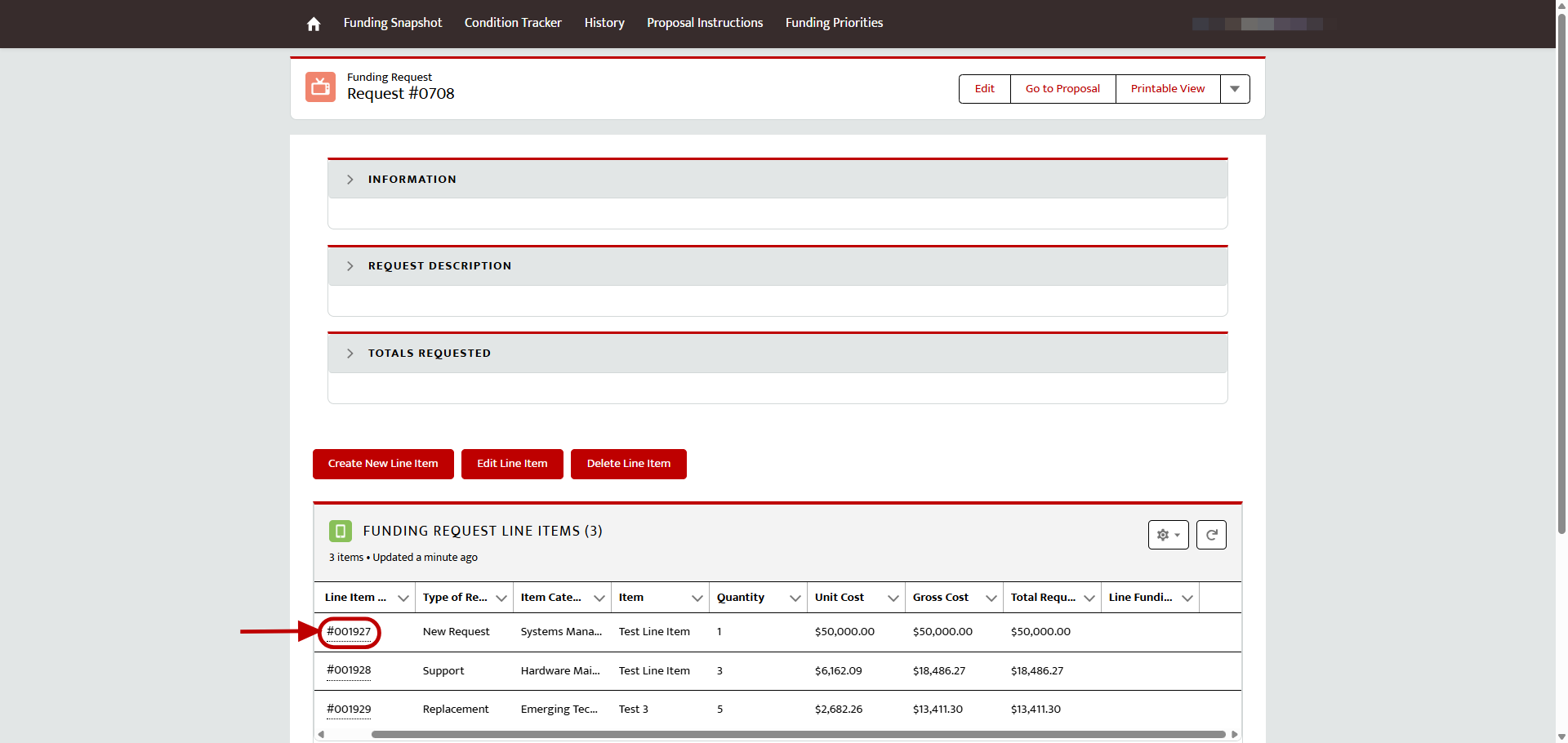
Open an existing item or request
Select an automatically generated line item or request number to view, edit, or delete that record.
View the complete list
Lists show five records at a time. Select View All to see every proposal, request, or line item.
Submit the proposal
Return to the Proposal Homepage
From a request or line item, select Go to Proposal.
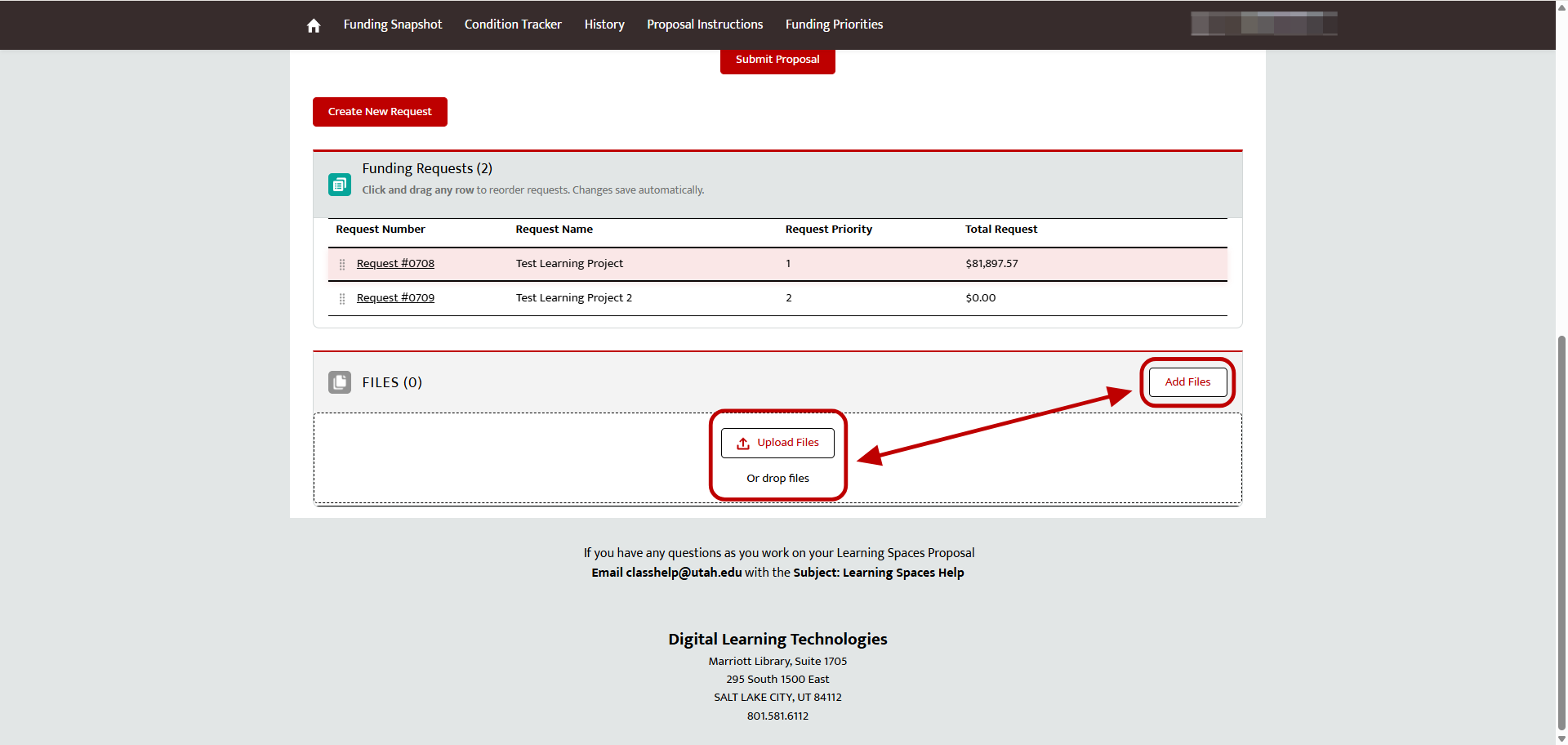
Review the attachments
In Files, confirm that the proposal includes all required documents. Select Upload Files to add a document.
Start the submission
When the proposal is complete, select Submit Proposal.
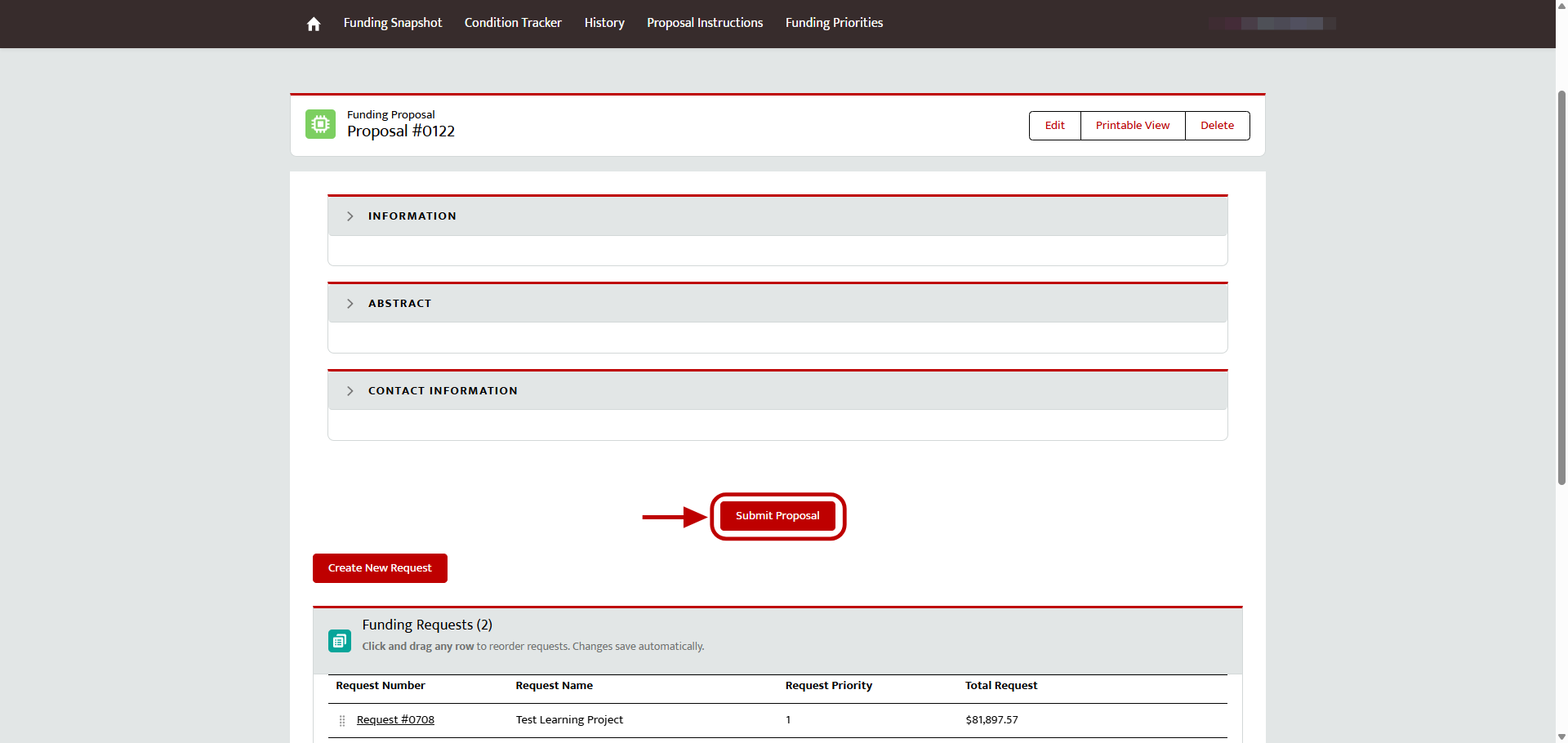
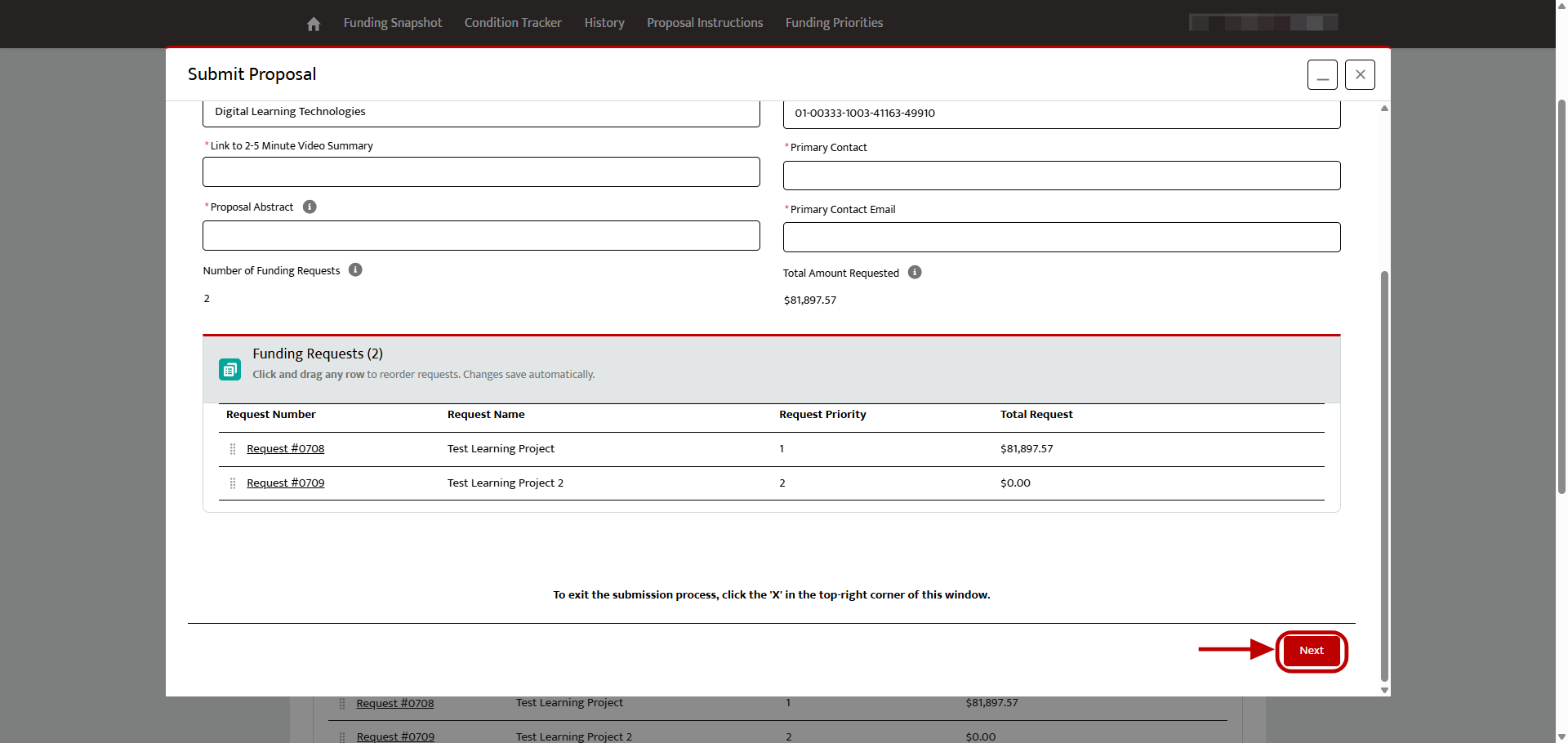
Complete the final review
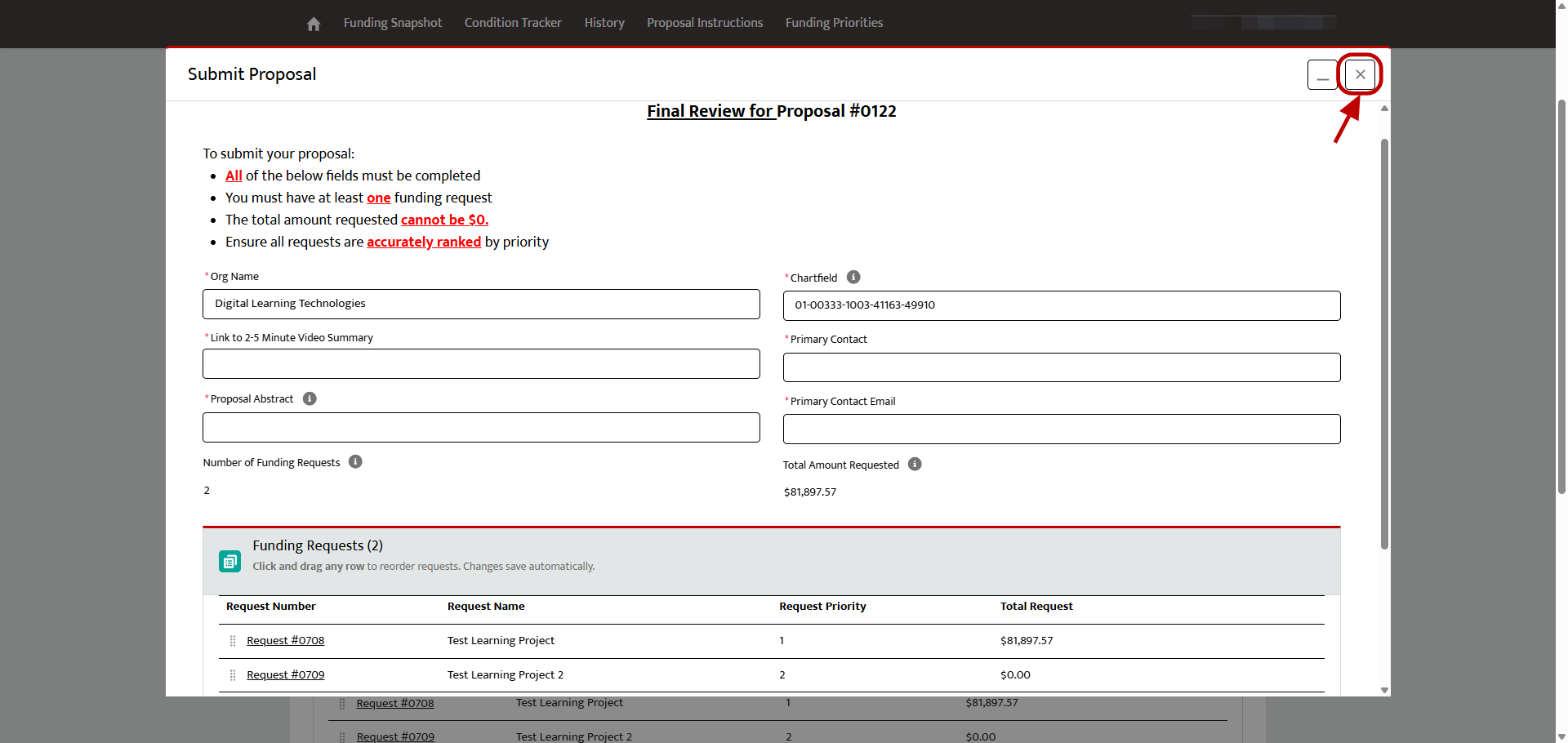
Confirm that all required fields are complete and accurate, all items are entered, and the requests are ranked correctly. Select Next to continue.
To return without submitting, select X to close the window.
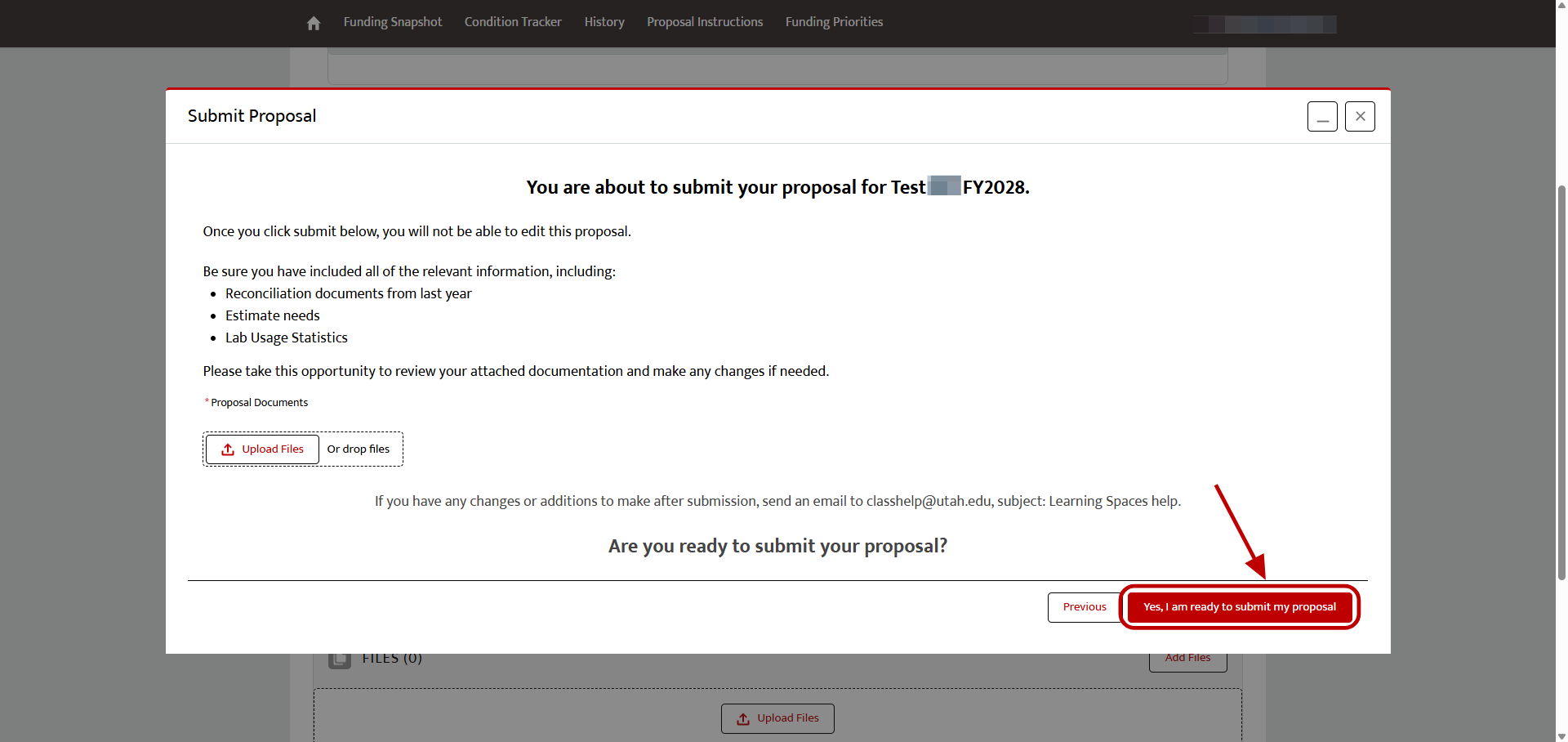
Confirm the submission
Review the attached documents, and then select Yes, I am ready to submit my proposal.
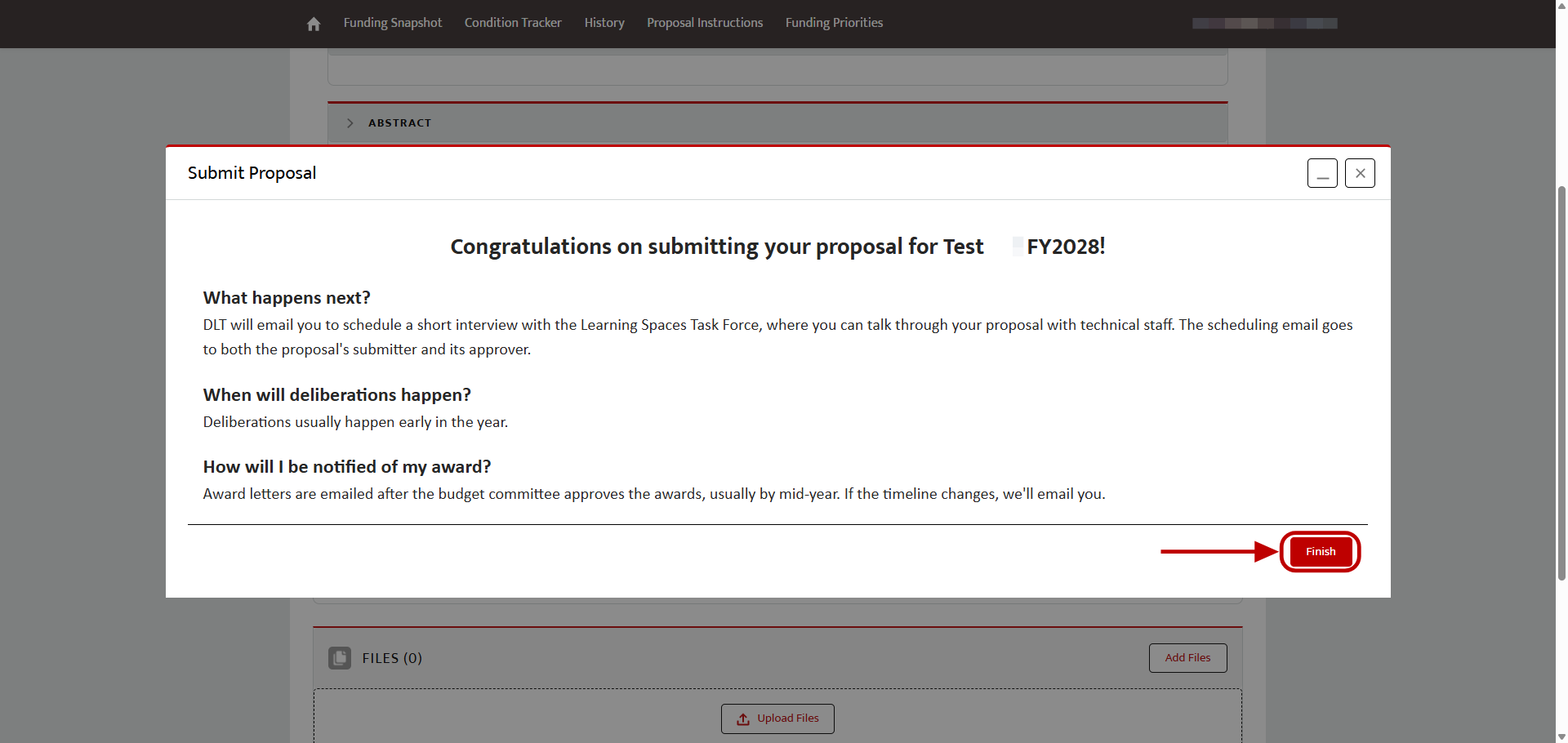
Finish and prepare for the next steps
After the confirmation message appears, select Finish. You can return to the Learning Spaces Homepage to view submitted proposals or work on proposals still in progress. Submitters may meet virtually with the Learning Spaces Task Force in February 2027 to discuss their proposal and answer questions.